> ## Documentation Index
> Fetch the complete documentation index at: https://developer.zapsterapi.com/llms.txt
> Use this file to discover all available pages before exploring further.
# Connecting a WABA instance
> How to create and connect a WhatsApp Business (WABA) instance on Zapster, using Embedded Signup or a manual System User Token from Meta.
There are two ways to connect a WABA instance on Zapster: through the dashboard (Embedded Signup) or through the API (manual token). Embedded Signup is the recommended method for most users.
## Method 1: Embedded Signup (recommended)
Embedded Signup is the fastest way to connect. You log in to your Facebook account, select the number, and you are done.
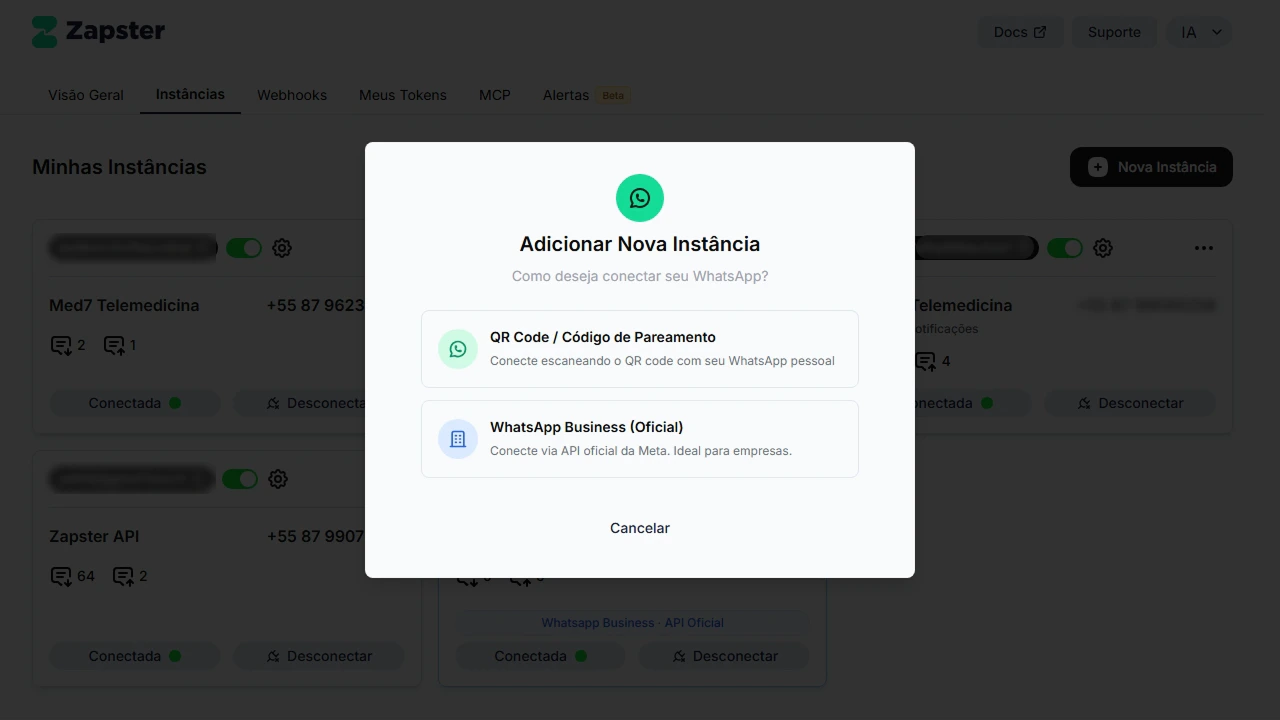
In the Zapster dashboard, click **Create instance** and select the **WhatsApp Business (Official)** option.
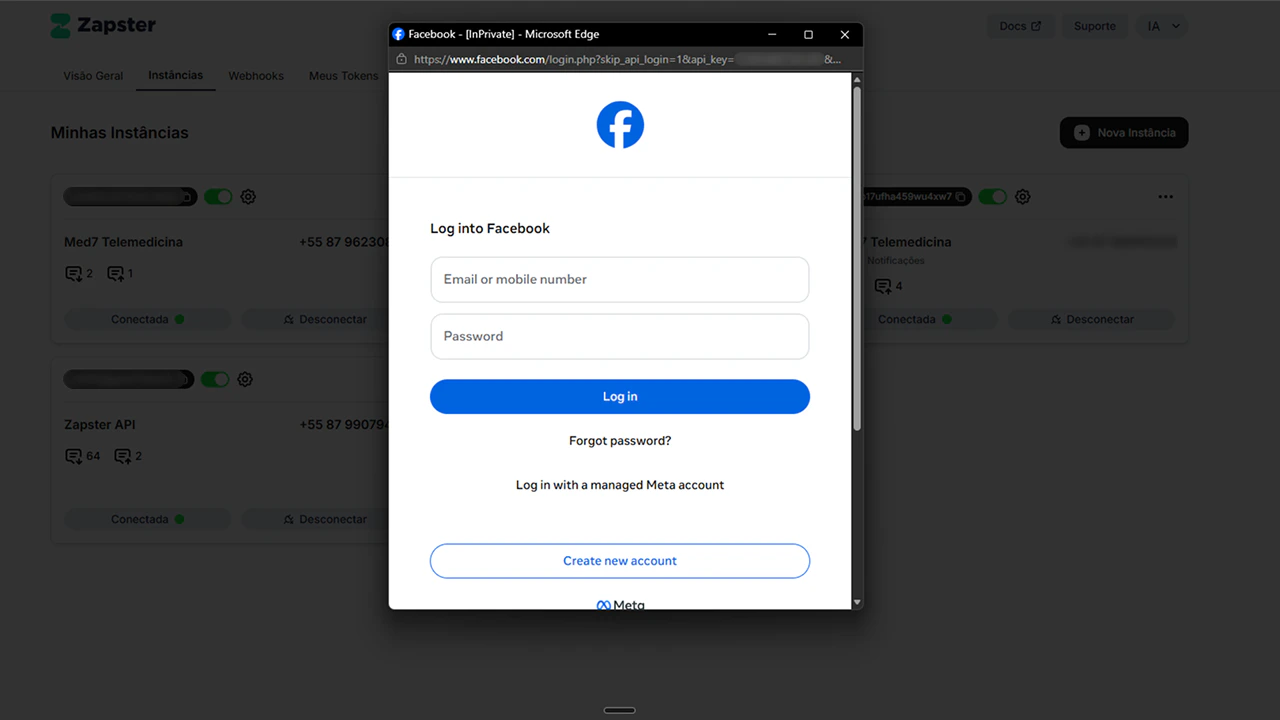
 Click the connection button. A Facebook window will open asking you to log in.
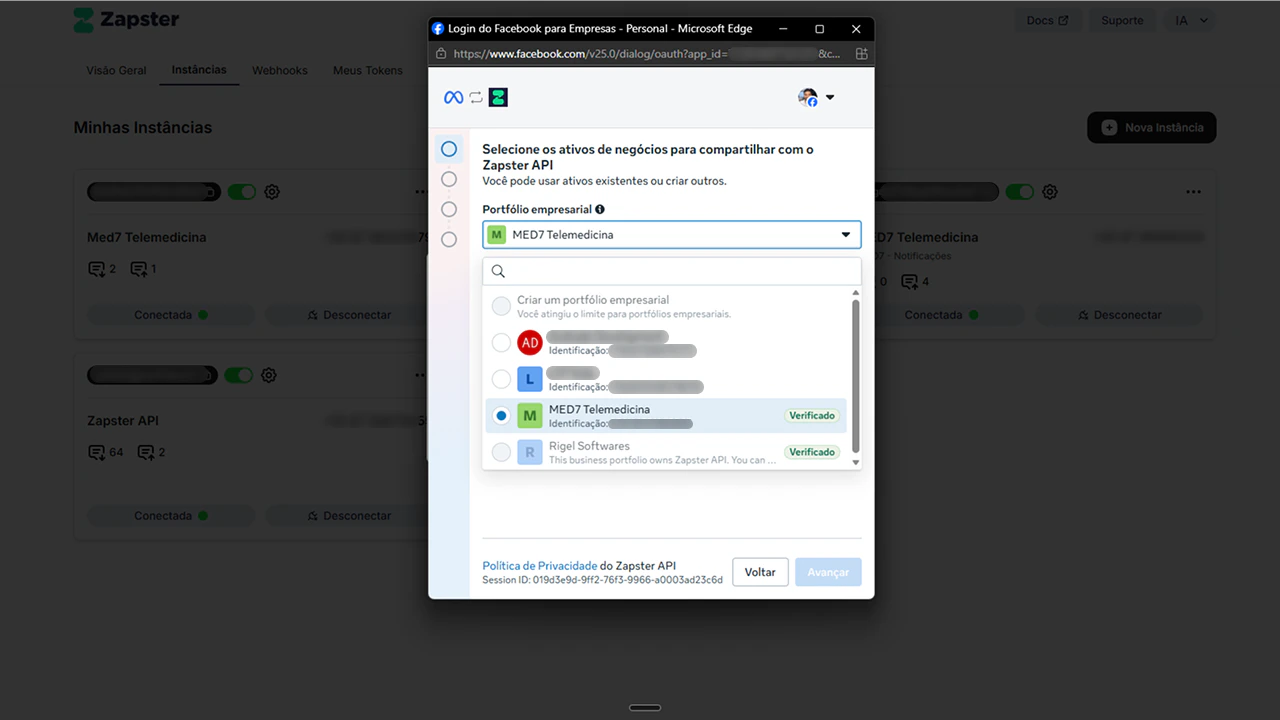
 Choose the WhatsApp Business account you want to connect. If you do not have one, you can create it during the process.
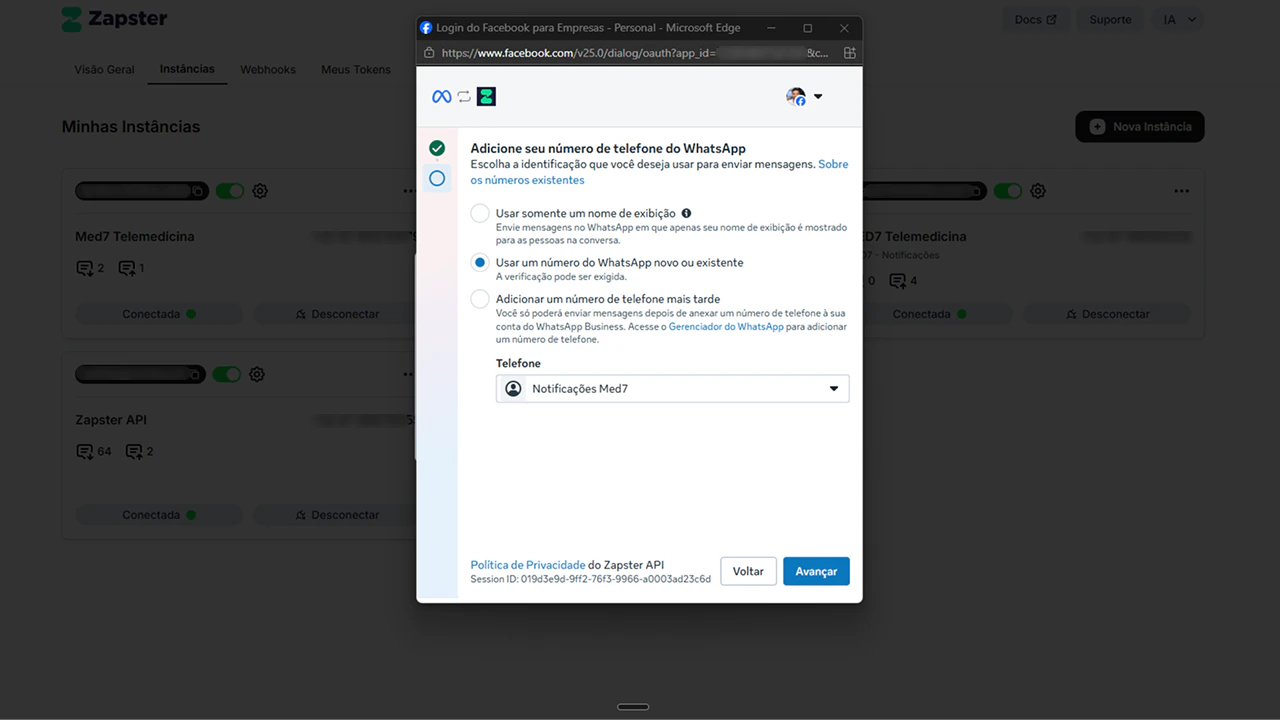
 Choose the number that will be connected to the instance. The number must be verified with Meta.
 Confirm the authorization. Zapster will configure everything automatically: webhook, credentials, and the instance will be ready to use.
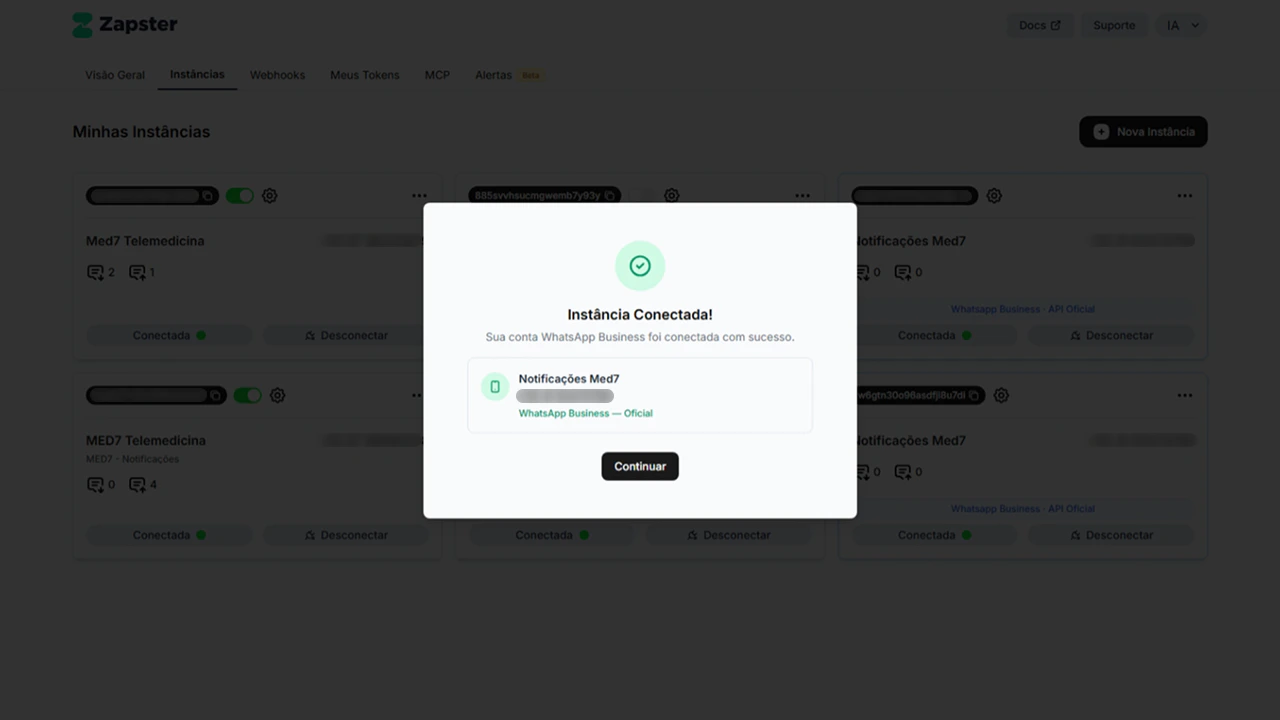 Once connected, you can already send messages through the same `POST /v1/wa/messages` endpoint you use for unofficial instances. Nothing changes in your integration.
## Method 2: Manual token (advanced)
If you already have a Meta System User Token and prefer to create the instance through the API, you can use the creation endpoint directly.
### What you will need
Before you start, you need three pieces of information from the [Meta Business Manager](https://business.facebook.com/settings). Below we show where to find each one.
The System User Token needs the `whatsapp_business_management` and `whatsapp_business_messaging` permissions. Without them, the creation will fail.
#### System User Token
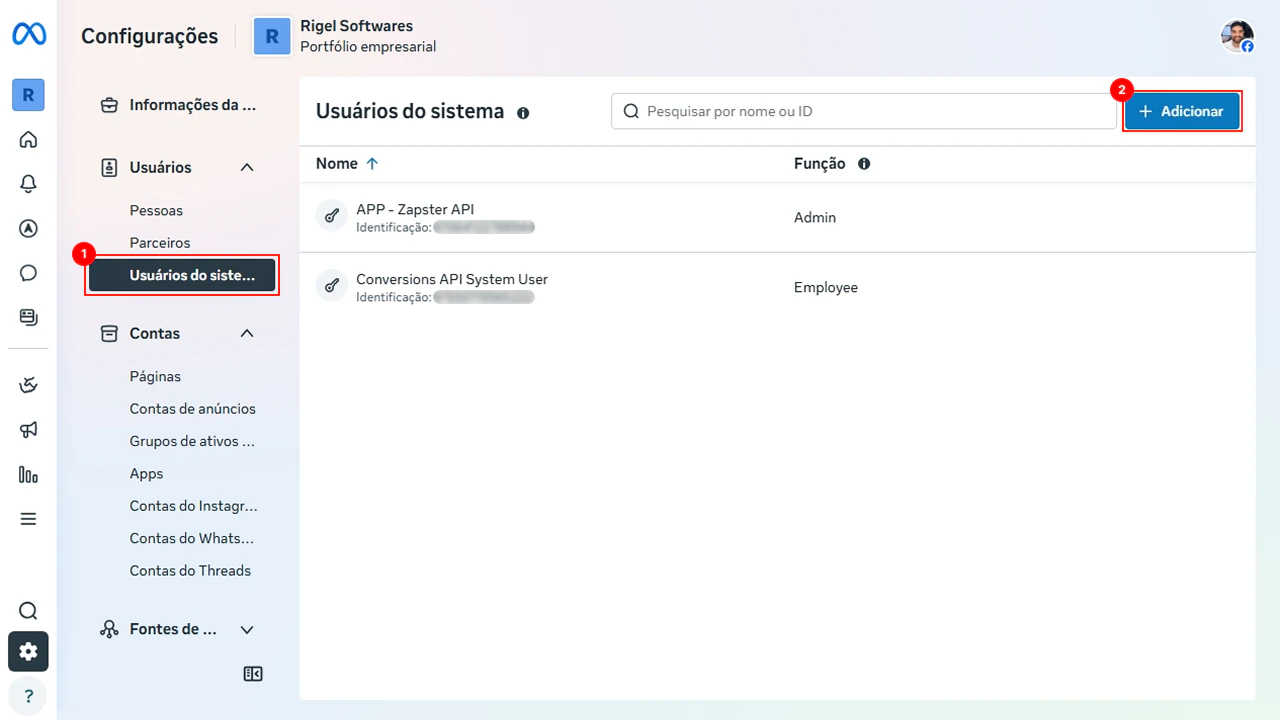
The token is generated in the System Users area inside the Meta Business Manager settings.
1. In the side menu, click **Users** and then **System users**.
2. Select the user that will connect (or create a new one by clicking **Add**).
3. Click the user and generate a new token with the required permissions.
Once connected, you can already send messages through the same `POST /v1/wa/messages` endpoint you use for unofficial instances. Nothing changes in your integration.
## Method 2: Manual token (advanced)
If you already have a Meta System User Token and prefer to create the instance through the API, you can use the creation endpoint directly.
### What you will need
Before you start, you need three pieces of information from the [Meta Business Manager](https://business.facebook.com/settings). Below we show where to find each one.
The System User Token needs the `whatsapp_business_management` and `whatsapp_business_messaging` permissions. Without them, the creation will fail.
#### System User Token
The token is generated in the System Users area inside the Meta Business Manager settings.
1. In the side menu, click **Users** and then **System users**.
2. Select the user that will connect (or create a new one by clicking **Add**).
3. Click the user and generate a new token with the required permissions.
 #### Phone Number ID
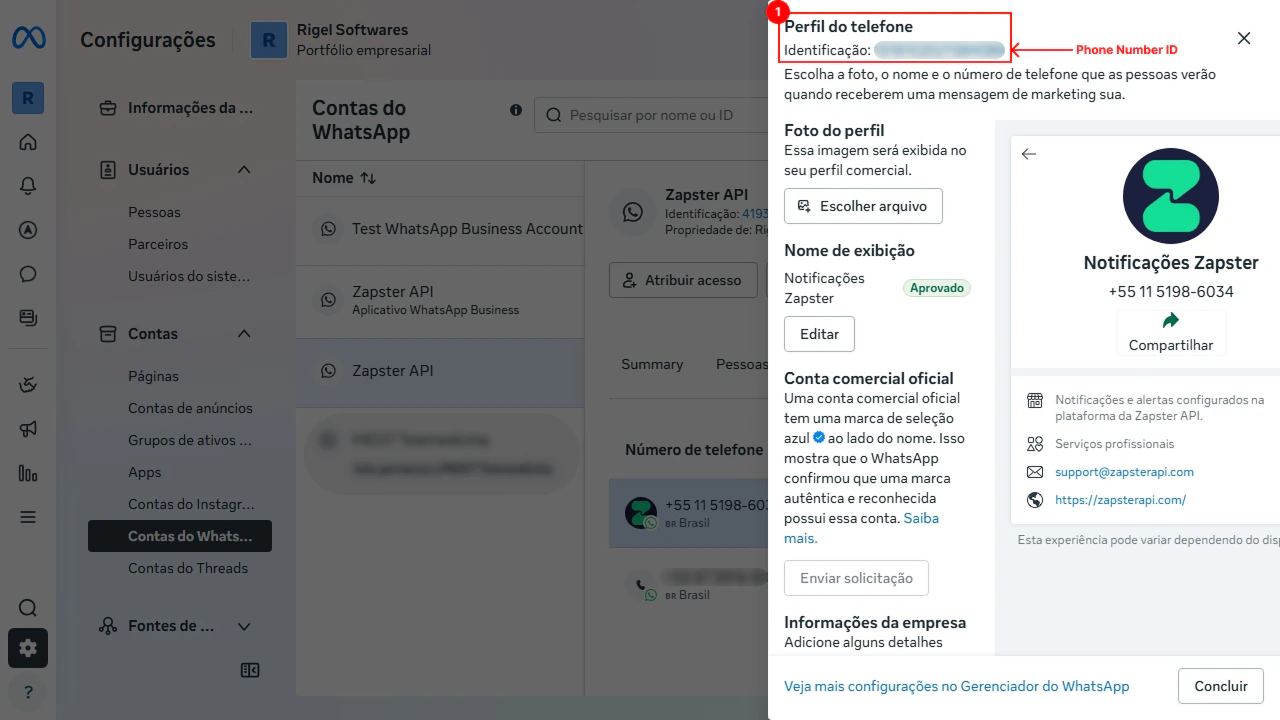
The Phone Number ID is the internal identifier Meta uses for your number. It is not the phone number itself.
1. In the side menu, click **WhatsApp Accounts**.
2. Select the account that contains the desired number.
3. Click the phone number to open its details. The **Phone Number ID** appears in the right-hand side panel, below the display name.
#### Phone Number ID
The Phone Number ID is the internal identifier Meta uses for your number. It is not the phone number itself.
1. In the side menu, click **WhatsApp Accounts**.
2. Select the account that contains the desired number.
3. Click the phone number to open its details. The **Phone Number ID** appears in the right-hand side panel, below the display name.
 #### WABA ID
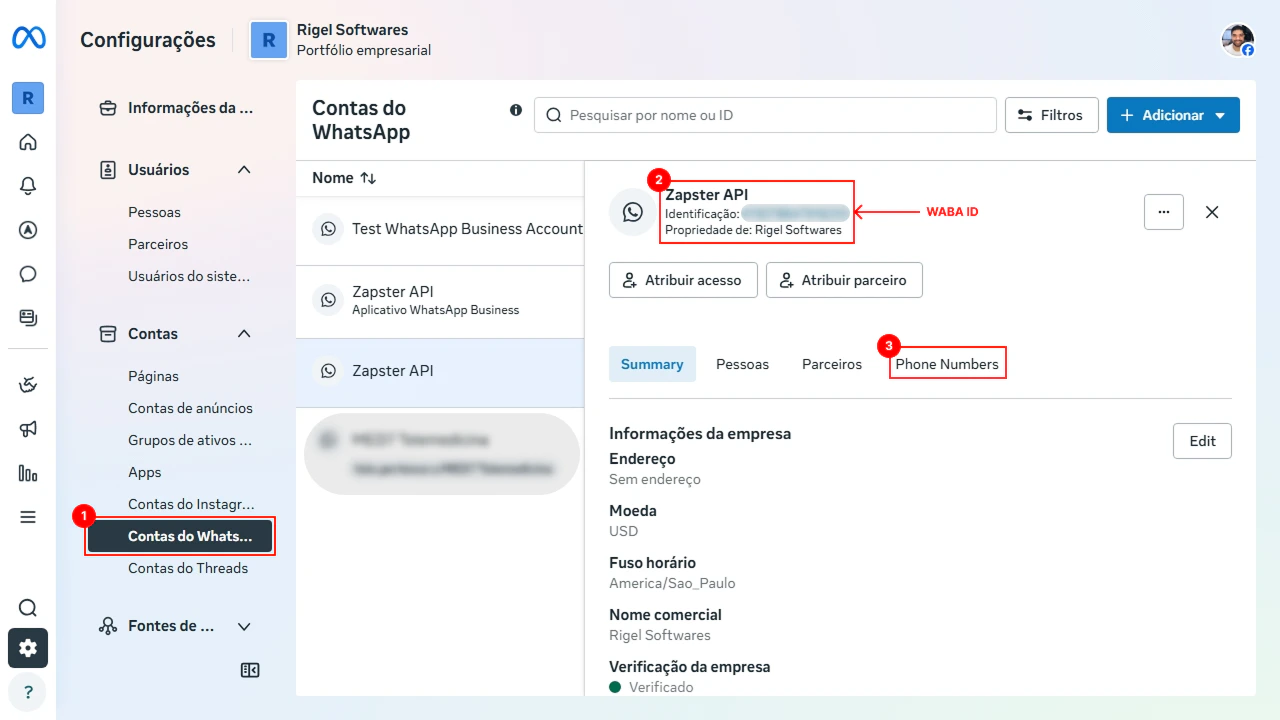
The WABA ID is the identifier of the WhatsApp Business account as a whole (not of the individual number).
1. In the side menu, click **WhatsApp Accounts**.
2. Select the desired account.
3. Click the **Phone Numbers** tab. The **WABA ID** appears at the top of the page, next to the account name.
#### WABA ID
The WABA ID is the identifier of the WhatsApp Business account as a whole (not of the individual number).
1. In the side menu, click **WhatsApp Accounts**.
2. Select the desired account.
3. Click the **Phone Numbers** tab. The **WABA ID** appears at the top of the page, next to the account name.
 ### Creating the instance through the API
```bash cURL theme={null}
curl -X POST https://api.zapsterapi.com/v1/wa/instances \
-H "Authorization: Bearer YOUR_TOKEN" \
-H "Content-Type: application/json" \
-d '{
"connection_type": "waba",
"name": "My Official WhatsApp",
"waba": {
"access_token": "EAAxxxxxxx...",
"phone_number_id": "1016102021584086",
"waba_id": "419378847918255"
}
}'
```
```javascript JavaScript theme={null}
const response = await fetch('https://api.zapsterapi.com/v1/wa/instances', {
method: 'POST',
headers: {
'Authorization': 'Bearer YOUR_TOKEN',
'Content-Type': 'application/json',
},
body: JSON.stringify({
connection_type: 'waba',
name: 'My Official WhatsApp',
waba: {
access_token: 'EAAxxxxxxx...',
phone_number_id: '1016102021584086',
waba_id: '419378847918255',
},
}),
});
const instance = await response.json();
console.log(instance);
```
If everything works, the response includes the created instance with status `connected`. Zapster registers the webhook with Meta automatically.
#### Using your own Meta app (BYO app)
If your System User Token belongs to **your own Meta app** (and not to the Zapster app), the incoming webhooks are signed with **your app's App Secret**. So that Zapster can verify the authenticity of those events, provide the optional fields below in the `waba` object:
* `app_secret`: the App Secret of your Meta app. When provided, the HMAC signature (`X-Hub-Signature-256`) of the webhooks is validated against it, ensuring full authenticity verification of the events. It is stored **encrypted at rest** (AES-256), just like `access_token`.
* `app_id`: the ID of your Meta app. Used only for identification/auditing; it is not a secret and does not take part in signature validation.
* `webhook_verify_token`: the webhook verification token. If omitted, Zapster generates a random one. Also stored encrypted at rest.
Whenever your System User Token belongs to your own Meta app, provide the `app_secret`. Because the webhooks are signed with your app's secret, it is what lets Zapster perform full HMAC signature verification and guarantee the authenticity of every received event.
## Data security
Your sensitive data is protected at every step:
* **Access token**: stored with AES-256-CBC encryption, the same standard used by banks and fintechs. The original token is never saved in plain text.
* **No exposure**: the token does not appear in logs, webhooks, API responses, or the dashboard. Not even the Zapster team has access to the original value.
* **Meta webhooks**: every event received from Meta is validated by HMAC-SHA256 signature before being processed. Events with an invalid signature are discarded.
If you need to change the token (for example, if the previous one expired), create a new WABA instance. The old token is removed along with the instance.
## What changes in API usage?
Nothing. Once the WABA instance is created, the endpoints are the same:
* `POST /v1/wa/messages` to send messages.
* `DELETE /v1/wa/messages/:id` to cancel scheduled messages.
* `GET /v1/wa/messages` to list history.
Zapster automatically detects the instance type and routes to Meta's Cloud API or to the unofficial connection.
The only difference is that WABA instances support **message templates** (the `template` field in the body) and **do not support sending to groups**.
## Next steps
* [Understand the differences between WABA and unofficial](/en/v1/guides/waba-vs-unofficial)
* [WhatsApp official (WABA) message pricing](/en/v1/concepts/message-pricing)
* [See how to send messages](/en/v1/guides/send-waba-messages)
* [Set up webhooks to receive events](/en/v1/concepts/webhooks)
* [Authentication template creation error (code 10, subcode 2388185)](/en/v1/guides/meta-auth-template-error)
### Creating the instance through the API
```bash cURL theme={null}
curl -X POST https://api.zapsterapi.com/v1/wa/instances \
-H "Authorization: Bearer YOUR_TOKEN" \
-H "Content-Type: application/json" \
-d '{
"connection_type": "waba",
"name": "My Official WhatsApp",
"waba": {
"access_token": "EAAxxxxxxx...",
"phone_number_id": "1016102021584086",
"waba_id": "419378847918255"
}
}'
```
```javascript JavaScript theme={null}
const response = await fetch('https://api.zapsterapi.com/v1/wa/instances', {
method: 'POST',
headers: {
'Authorization': 'Bearer YOUR_TOKEN',
'Content-Type': 'application/json',
},
body: JSON.stringify({
connection_type: 'waba',
name: 'My Official WhatsApp',
waba: {
access_token: 'EAAxxxxxxx...',
phone_number_id: '1016102021584086',
waba_id: '419378847918255',
},
}),
});
const instance = await response.json();
console.log(instance);
```
If everything works, the response includes the created instance with status `connected`. Zapster registers the webhook with Meta automatically.
#### Using your own Meta app (BYO app)
If your System User Token belongs to **your own Meta app** (and not to the Zapster app), the incoming webhooks are signed with **your app's App Secret**. So that Zapster can verify the authenticity of those events, provide the optional fields below in the `waba` object:
* `app_secret`: the App Secret of your Meta app. When provided, the HMAC signature (`X-Hub-Signature-256`) of the webhooks is validated against it, ensuring full authenticity verification of the events. It is stored **encrypted at rest** (AES-256), just like `access_token`.
* `app_id`: the ID of your Meta app. Used only for identification/auditing; it is not a secret and does not take part in signature validation.
* `webhook_verify_token`: the webhook verification token. If omitted, Zapster generates a random one. Also stored encrypted at rest.
Whenever your System User Token belongs to your own Meta app, provide the `app_secret`. Because the webhooks are signed with your app's secret, it is what lets Zapster perform full HMAC signature verification and guarantee the authenticity of every received event.
## Data security
Your sensitive data is protected at every step:
* **Access token**: stored with AES-256-CBC encryption, the same standard used by banks and fintechs. The original token is never saved in plain text.
* **No exposure**: the token does not appear in logs, webhooks, API responses, or the dashboard. Not even the Zapster team has access to the original value.
* **Meta webhooks**: every event received from Meta is validated by HMAC-SHA256 signature before being processed. Events with an invalid signature are discarded.
If you need to change the token (for example, if the previous one expired), create a new WABA instance. The old token is removed along with the instance.
## What changes in API usage?
Nothing. Once the WABA instance is created, the endpoints are the same:
* `POST /v1/wa/messages` to send messages.
* `DELETE /v1/wa/messages/:id` to cancel scheduled messages.
* `GET /v1/wa/messages` to list history.
Zapster automatically detects the instance type and routes to Meta's Cloud API or to the unofficial connection.
The only difference is that WABA instances support **message templates** (the `template` field in the body) and **do not support sending to groups**.
## Next steps
* [Understand the differences between WABA and unofficial](/en/v1/guides/waba-vs-unofficial)
* [WhatsApp official (WABA) message pricing](/en/v1/concepts/message-pricing)
* [See how to send messages](/en/v1/guides/send-waba-messages)
* [Set up webhooks to receive events](/en/v1/concepts/webhooks)
* [Authentication template creation error (code 10, subcode 2388185)](/en/v1/guides/meta-auth-template-error)